Onimusha Way of the Sword Mods: Best Mods & Fluffy Guide
Best PC mods for Onimusha Way of the Sword. Install REFramework, Aggressive AI, Auto Soul Collection, 4K textures, and unlock boss weapons with ease.
Capcom's return to feudal supernatural warfare in Onimusha: Way of the Sword brings razor-sharp katana duels and cinematic Genma demon battles to modern hardware. Running on Capcom's battle-tested RE Engine, the PC version offers fluid 120+ FPS combat, but veterans and newcomers alike have noted several legacy quirks: passive enemy group behavior, tedious manual soul-absorbing animations during frantic boss fights, and missing ultrawide display support.
Thanks to the dedicated RE Engine modding ecosystem, customizing your demon-slaying experience takes only a few minutes. Here are the top PC mods for Onimusha: Way of the Sword and how to install them seamlessly using Fluffy Mod Manager and REFramework.
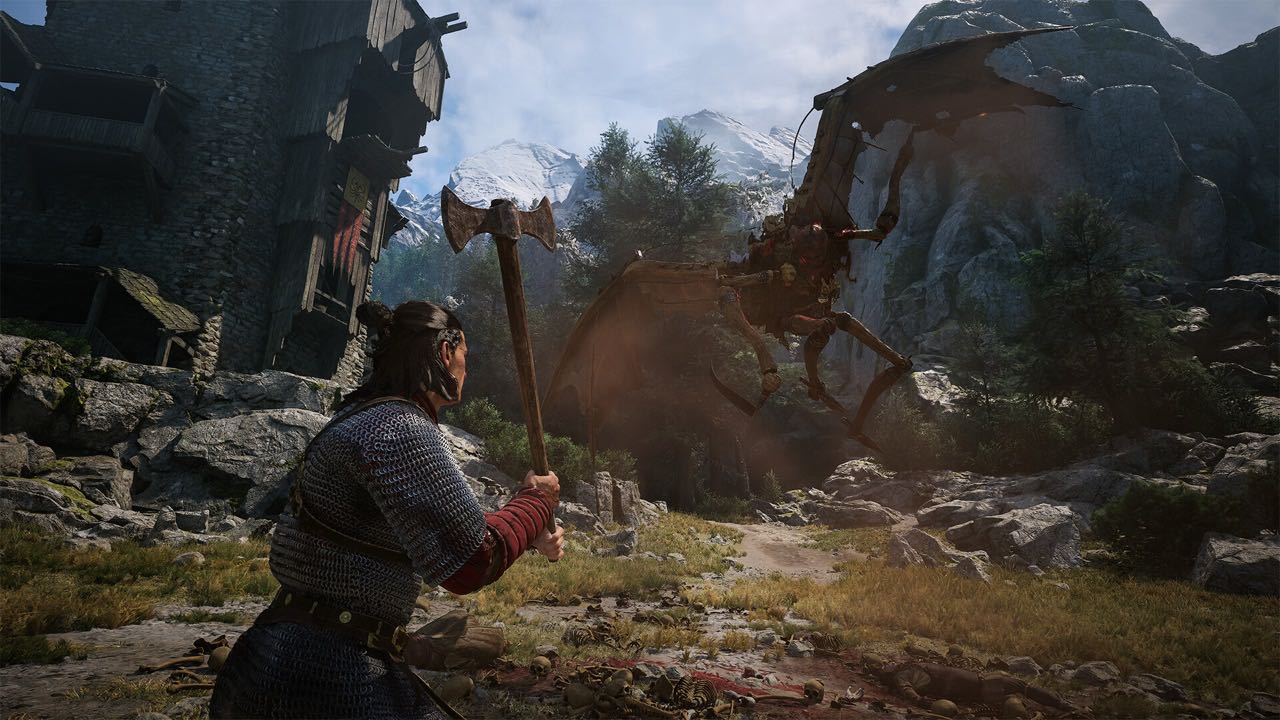
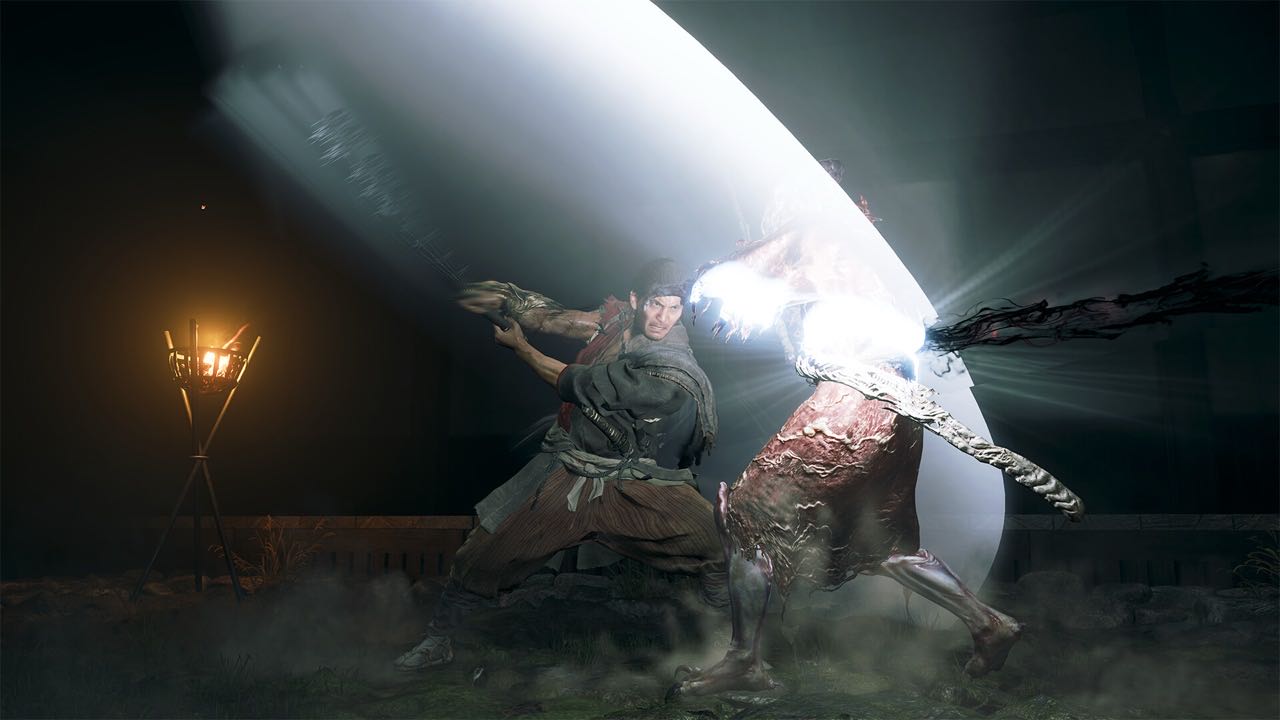 Samanosuke sword combat and Issen counter in Onimusha Way of the Sword
Top Essential Mods for Onimusha: Way of the Sword
Below is the verified list of high-priority community mods that enhance challenge, visual fidelity, and quality of life:
| Mod Name | Category | Primary Function | Stability |
|---|---|---|---|
| Aggressive AI (Harder Edition) | Gameplay / AI | Forces demons to attack simultaneously rather than waiting in queues | 100% Stable |
| Auto Soul Collection & Fast Loot | Quality of Life | Absorbs demon souls passively without holding down the gauntlet button | 100% Stable |
| Fluffy Mod Manager 5000 | Mod Manager | One-click install and uninstall tool for all RE Engine mods | Essential Tool |
| REFramework (Way of the Sword Build) | Script Engine | Lua script loader, FOV slider, freecam, and crash prevention | Essential Hook |
| The Two Celestials Boss Weapon Mod | Content Unlock | Equips previously non-playable dual boss swords with custom move animations | Stable |
| Ultrawide 21:9 & 32:9 Aspect Fix | Display | Eliminates side pillarboxing on ultrawide monitors and fixes HUD scaling | Visual Fix |
Installation Tutorial: REFramework & Fluffy Mod Manager
The safest way to manage modifications without modifying core game archives directly is using Fluffy Mod Manager:
Step 1: Install REFramework
- Download the latest release of
REFrameworkfor Onimusha: Way of the Sword. - Extract the
dinput8.dllfile directly into your game root directory (whereOnimushaWOTS.exeis located):...\steamapps\common\Onimusha Way of the Sword\ - Launch the game once. Press
Inserton your keyboard to toggle the REFramework overlay, verifying the hook is active.
Step 2: Install and Configure Fluffy Mod Manager
- Download Fluffy Mod Manager 5000 and extract it anywhere on your PC.
- Select Onimusha: Way of the Sword from the supported game list.
- Click Define game path and browse to
OnimushaWOTS.exe. - Drop your downloaded mod
.zipor.rararchives directly into:...\FluffyModManager\Games\OnimushaWOTS\Mods\ - Open Fluffy Mod Manager, click Refresh mod list, and toggle your desired mods to ON.
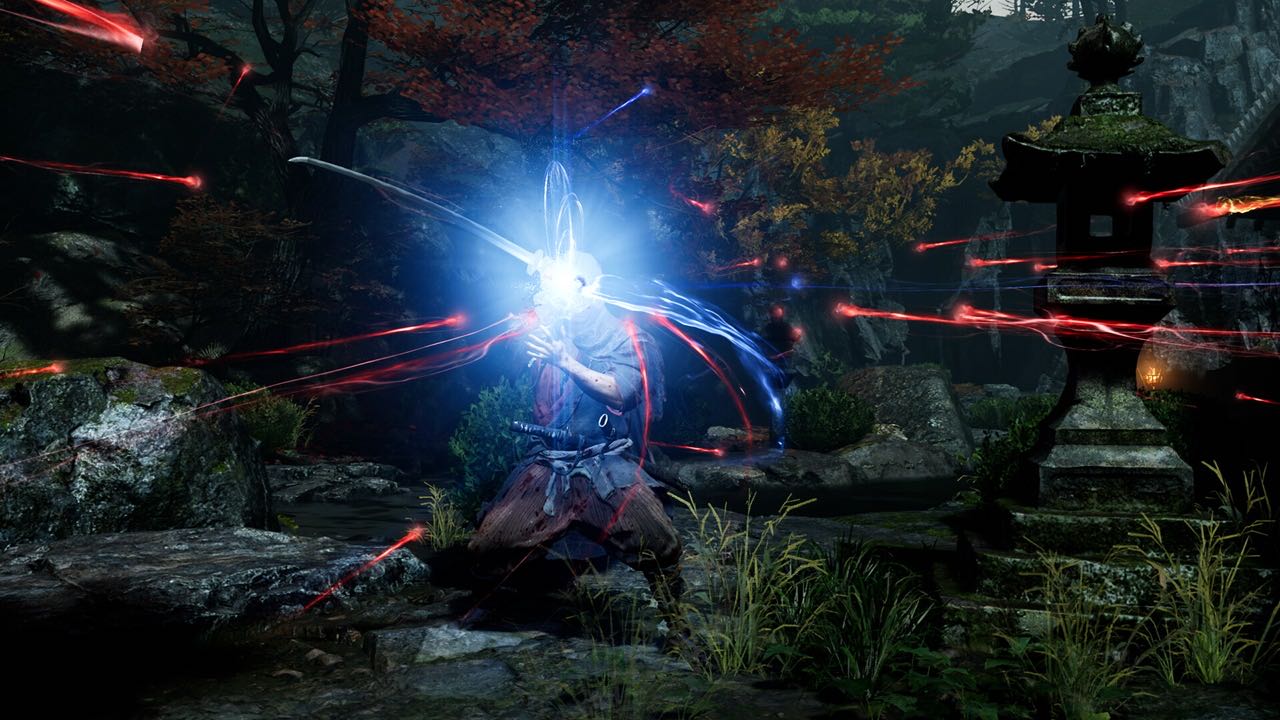 Onimusha Way of the Sword boss encounter and weapon switching
Advanced Combat Tuning: Mastering the Issen Window
For players seeking the true arcade mastery of classic Onimusha, the Aggressive AI mod combined with the Chain Issen Training Mod turns standard combat encounters into high-stakes test of reflex.
By default, enemy demons surround Samanosuke but execute strikes sequentially. With Aggressive AI active, archers fire covering volleys while spear-wielding Genma lunge simultaneously, forcing you to execute frame-perfect Hangeki (deflection) and chain multiple Issen lethal counters in rapid succession.
Frequently Asked Questions
Will using mods flag my Steam account?
No. Onimusha: Way of the Sword does not use invasive anti-tamper or competitive anti-cheat services. All mods operate locally on client memory.
What should I do if an official Capcom update breaks REFramework?
Simply download the latest nightly build of REFramework and replace dinput8.dll in your game folder. Community maintainers typically issue compatibility updates within 24 hours of any game patch.